


How Do NFC E Ink Phone Cases Work? A 2026 Guide
Table of Contents
- What an E Ink Phone Case Is and How It Differs From a Regular Case
- How NFC E Ink Displays Work: Wireless Power and Image Transfer Explained
- How to Update an NFC E Ink Phone Case in Three Steps
- NFC E Ink Phone Case Compatibility: Which Phones and Models Work
- Battery Impact and Power Use During Image Refresh
- NFC Phone Case Not Updating? Troubleshooting Common Fixes
- E Ink Phone Case Image Ideas for Everyday Personalisation
- Conclusion: A Simple, Battery-Free Way to Personalise Your Phone
- Frequently Asked Questions
Last Updated: October 14, 2026
What an E Ink Phone Case Is and How It Differs From a Regular Case
An E Ink phone case is a protective case with a paper-like electronic display built into the back.
That last point is the whole trick. A regular case is fixed the moment you buy it. If you want a new look, you buy another case.
The display is bistable, which means it only draws power while the picture changes. Once the image is set, it stays there. No battery inside the case. No cable.
How NFC E Ink Displays Work: Wireless Power and Image Transfer Explained
NFC, or near-field communication, is the same short-range wireless standard your phone uses for tap-to-pay and for reading transit cards. In an NFC E Ink case, that single connection does two jobs at once: it delivers power to the case and it carries the image data.
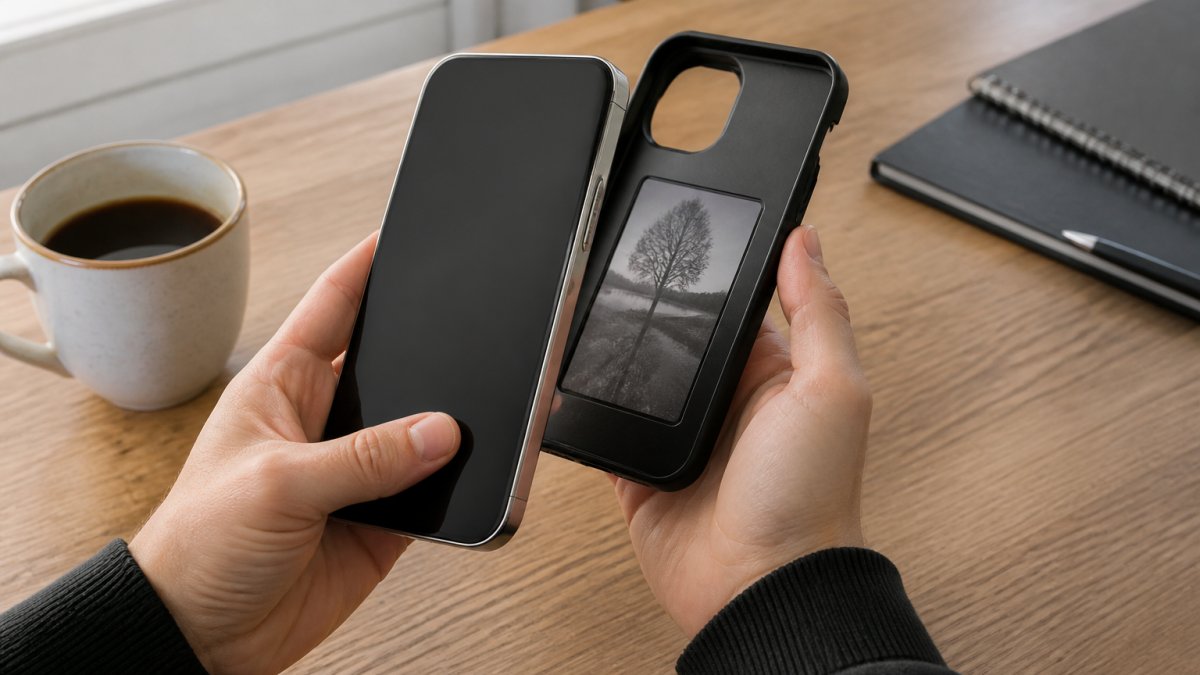
Here is the part most guides skip. The case has no battery, no charging port and no internal power source. So where does the power come from?
The refresh sequence, step by step
- Field generation. When you open the companion app and tap send, your phone's NFC antenna energises and produces a small oscillating electromagnetic field at 13.56 MHz, the globally harmonised NFC frequency.
- Induction. When the case's antenna coil sits inside that field, the changing magnetic flux induces an alternating current in the coil. This is Faraday induction, the same principle behind a wireless charging pad, just at a much lower power level and over a much shorter distance.
- Rectification and wake-up. The case's controller rectifies that alternating current into direct current, which wakes the display driver. No field, no wake-up, the case is genuinely inert until your phone is held against it.
- Data transfer. Your phone modulates the field to encode the image instructions. The case reads that modulation as data, the same way a tap-to-pay terminal reads your card details.
- Display refresh. The driver applies voltages to the E Ink microcapsules, moving the charged black and white pigment particles to form the new image. This is the only moment the panel consumes meaningful power.
- Field off, image held. When the transfer completes, your phone stops generating the field. The pigment particles stay where they were physically pushed, so the image remains visible with zero further power draw. This is what bistable means in practice.
Why alignment and distance matter so much
The field strength drops off sharply with distance, roughly with the inverse cube of the gap. In practical terms, the case's coil needs to be within about two centimetres of your phone's NFC antenna, and ideally much closer.
Anything between the two coils, a thick phone case, a metal plate, a magnetic car mount, a bank card with its own NFC chip, will absorb or distort the field and can cause the transfer to fail or the image to arrive corrupted.
What the case actually contains
A typical NFC E Ink case has four functional parts:
- An antenna coil tuned to 13.56 MHz
- An NFC controller that decodes the incoming data
- A display driver that translates that data into voltages for the panel
- The E Ink panel itself, usually a small monochrome or limited-colour display
There is no battery, no Bluetooth radio and no memory card. The image lives in the physical state of the pigment, not in storage.
NFC Forum technical specifications
How to Update an NFC E Ink Phone Case in Three Steps
Updating takes seconds. The whole process is pick, tap, confirm.
Step 1: Choose Your Image in the Companion App
Open the companion app and pick a photo, artwork or quote from your phone. Crop it to fit the display shape. High-contrast images with clear subjects tend to look sharpest on E Ink.
Step 2: Hold Your Phone to the Case and Tap to Send
Hold the top of your phone against the back of the case, near the NFC antenna. Tap send in the app. Your phone will buzz or beep to confirm the handshake.
Step 3: Confirm the Refresh and Check the Result
The display flickers as it refreshes, then settles. That flicker is normal. Your new image now stays on the case until you decide to change it.
NFC E Ink Phone Case Compatibility: Which Phones and Models Work
Compatibility comes down to two things: your phone model and whether it has NFC.
Almost every modern iPhone and Samsung Galaxy has NFC built in. But the case itself is cut for a specific model, so the fit is exact, not universal.
At ShopTapEink, our cases are made for specific models only, including:
- iPhone 17, 17 Pro and 17 Pro Max
- iPhone 13 Pro through 16 Pro Max
- iPhone 16, 16 Plus, 16 Pro and 16 Pro Max
- Samsung Galaxy S24 Ultra and S23 Ultra
Each case fits its listed model only. Choose your exact model at checkout. If you are unsure, message us and we will check before you order.

Battery Impact and Power Use During Image Refresh
Here is the question we get most: will this drain my phone battery?
The honest answer is that the impact is small. The case itself has no battery to charge.
Compare that to a second screen or an always-on display. Those pull power constantly.
A refresh takes a few seconds.
So the real battery cost is the tap, not the case.
Glass-Back NFC E Ink Case for iPhone 17, 17 Pro and 17 Pro Max →
NFC Phone Case Not Updating? Troubleshooting Common Fixes
When an NFC phone case will not update, the cause is almost always one of a handful of things. Work through this sequence in order, it moves from the most common cause to the least, so you are not dismantling your setup for a problem that was a settings toggle.
Step 1: Confirm the symptom
Different failures point to different causes:
- No buzz, no beep, nothing happens. The handshake never occurred. This is a settings, alignment or interference problem.
- Phone buzzes but the display does not change. The handshake worked but the data transfer or refresh failed. This is usually a positioning or app problem.
- Display flickers but the image is wrong or partial. The transfer was interrupted mid-refresh. Hold the phone steady and retry.
- Image appears then fades or inverts. The panel received incomplete data. Retry with a simpler, higher-contrast image.
Step 2: Check NFC settings and app permissions
Make sure NFC is switched on in your phone's settings. On most phones this lives under Connections or Wireless & Networks. Then confirm the companion app has permission to use NFC.
A common trap: battery-saver mode disables NFC on many phones. If your case worked yesterday and not today, check whether battery saver kicked in.
Step 3: Fix alignment and distance
The antenna needs to sit directly against the case, over the coil. On most phones the NFC antenna is near the top of the back, close to the camera module. Hold the phone there, flat against the case, and keep it still for the full refresh, usually a few seconds.
Do not lift the phone mid-refresh. Even a small gap can drop the field and abort the transfer.
Step 4: Remove interference
Anything between the two coils will weaken or block the field:
- Thick or metal-backed phone cases
- Magnetic mounts or plates
- Bank cards, transit cards or other NFC tags nearby
- Metal desks or surfaces
Remove these and try again.
Step 5: Reset the app and retry
If the handshake keeps failing:
- Close the companion app completely and reopen it
- Force-stop the app in your phone's settings
- Restart your phone
- Try a different image, a very large or complex file can time out on slower transfers
Step 6: Test with a known-good image
Load a simple, high-contrast image, a bold shape or a single word. If that works and your original image does not, the problem is the image, not the case. Very detailed photos with fine gradients can exceed what the panel can render cleanly.
Step 7: Check for firmware or app updates
Companion apps are updated periodically to fix transfer bugs and add phone-model support. Make sure you are on the latest version.
When to contact support
If you have worked through all of the above and the case still will not update, it may be a hardware fault, a damaged coil or a failed driver. Contact support with your phone model, the app version and a description of which step failed. At ShopTapEink, our team will walk you through setup and arrange a replacement if the case is faulty.
E Ink Phone Case Image Ideas for Everyday Personalisation
The fun part is deciding what to show. A few ideas that work well:
- A favourite photo of family, friends or a pet
- Your own artwork, photography or design
- A quote or mantra you want to see daily
- A QR code linking to your portfolio or socials
- Seasonal or mood-based designs you swap to match your day
A common mistake is loading one image and never changing it. The whole point is that you can. Match your case to your outfit, your mood or the occasion.
Conclusion: A Simple, Battery-Free Way to Personalise Your Phone
Changing your phone's look should not mean buying case after case. It should not mean charging anything either.
NFC E Ink cases solve both problems. One case, endless looks, and no battery to think about. The display holds your image until you decide to change it.
If you want a case that does this properly, ShopTapEink makes battery-free E Ink cases for iPhone and Samsung Galaxy models, with a paper-like display, a shockproof shell and a Sydney-based support team.

Get started with ShopTapEink and give your phone a look you can change with a single tap.
Frequently Asked Questions
How does an NFC E Ink phone case work?
An NFC E Ink phone case uses near-field communication to send an image from your phone to the case. You pick a photo in the companion app, hold your phone against the case, and the NFC antenna transfers the data and power needed to refresh the E Ink display. The image stays on the case without any battery or charging, because E Ink only uses power when the picture changes.
Does an NFC E Ink phone case need to be charged?
No. The E Ink display is bistable, meaning it holds an image with zero power once it is set. The only energy used is a small amount drawn from your phone during the NFC transfer when you update the image. There is no battery inside the case and nothing to plug in, so it works straight out of the box and stays ready whenever you want a new look.
Will an NFC E Ink case work with any smartphone?
It needs a phone with built-in NFC, which covers most modern iPhone and Samsung Galaxy models. However, the case itself is made for specific models, so you must choose the exact fit for your device. For example, ShopTapEink offers cases for iPhone 17, 17 Pro and 17 Pro Max, as well as Galaxy S24 Ultra and S23 Ultra. Check your model before ordering.
What should I do if my NFC E Ink case will not update?
First, make sure NFC is turned on in your phone settings and the companion app has permission to use it. Hold your phone flat against the back of the case, centred over the display, and keep it still for a few seconds. Remove any thick metal plates or magnetic mounts from the case. If it still fails, restart the app and try again. Most issues come down to alignment or a setting that got switched off.
E Ink Image Optimization: How to Prepare Photos, Artwork, and Text for a Phone Case
Anime Artwork E Ink Cases: How to Choose and Prepare the Right Design
Related Posts

Are Battery-Free Customizable Phone Cases Worth It?

5 Things to Know Before Buying an NFC Case for iPhone 16

How to Put Photos on an E Ink Phone Case

Inkcase vs Reinkstone: 2026 E Ink Case Comparison

Does an NFC Phone Case Drain Battery? The Real Answer

E Ink Phone Case Battery Life: What to Expect

Hipoink Alternative for Creative Professionals: E Ink Cases
