


How to Customize NFC Phone Case: Step-by-Step Guide
Table of Contents
- What You'll Need Before You Start
- NFC Phone Case Compatibility: Check Your Model
- How to Customize NFC Phone Case: The Setup Process
- Using the NFC Phone Case App for Best Results
- How to Change NFC Phone Case Image: Updating Your Design
- Personalizing with an NFC Phone Case with Photo
- Common Mistakes to Avoid
- Troubleshooting and Recovery
- Frequently Asked Questions
Last Updated: October 11, 2026
What You'll Need Before You Start
To customize an NFC phone case, you'll need just a few things. First, grab your smartphone, an iPhone or Samsung Galaxy model that's compatible with the case. Next, you'll need the NFC E Ink case itself, which comes ready to pair with your device. Download the companion app to your phone before you start. Finally, have your favourite image or photo ready. That's genuinely all you need to begin personalizing your device.

The beauty of NFC technology is its simplicity. No batteries. No charging cables. No complicated setup processes. Just your phone, the case, and an image you love.
NFC Phone Case Compatibility: Check Your Model
Before purchasing, verify your phone model matches the case specifications. ShopTapEink offers cases for specific iPhone and Samsung Galaxy models. The ShopTapEink product pages list exact compatibility for each case variant.

For iPhone users, models range from iPhone 13 Pro through iPhone 17 Pro Max. Each case fits one specific model only, an iPhone 16 case won't fit an iPhone 15, for example. Samsung Galaxy users can find cases designed for the S24 Ultra and S23 Ultra models.
Check your phone's settings to confirm the model. On iPhone, go to Settings > General > About and look for the model name. On Samsung Galaxy, open Settings > About Phone > Device Name. Match this exactly to the case specifications before ordering.
Wireless charging compatibility varies by model. If wireless charging is essential for your workflow, contact the ShopTapEink support team before purchasing. They'll confirm whether your specific phone model works with wireless chargers alongside the case.
How to Customize NFC Phone Case: The Setup Process
Customizing your NFC phone case involves four straightforward steps. The entire process takes fewer than five minutes once you've gathered your materials. Below, we'll walk you through each stage so you can display your chosen image on the case's paper-like E Ink display.
Step 1: Download and Install the Companion App
Start by finding the companion app in your phone's app store. Search for the official ShopTapEink app and tap Install. The app is free.
Once installed, open the app and create an account or log in if you already have one. Grant the app permission to access your phone's photo library when prompted. This allows the app to pull images from your camera roll.
The app interface is clean and straightforward. You'll see options to select images, manage designs, and prepare your case. Take a moment to explore the main menu so you know where everything lives.
Step 2: Select and Prepare Your Image
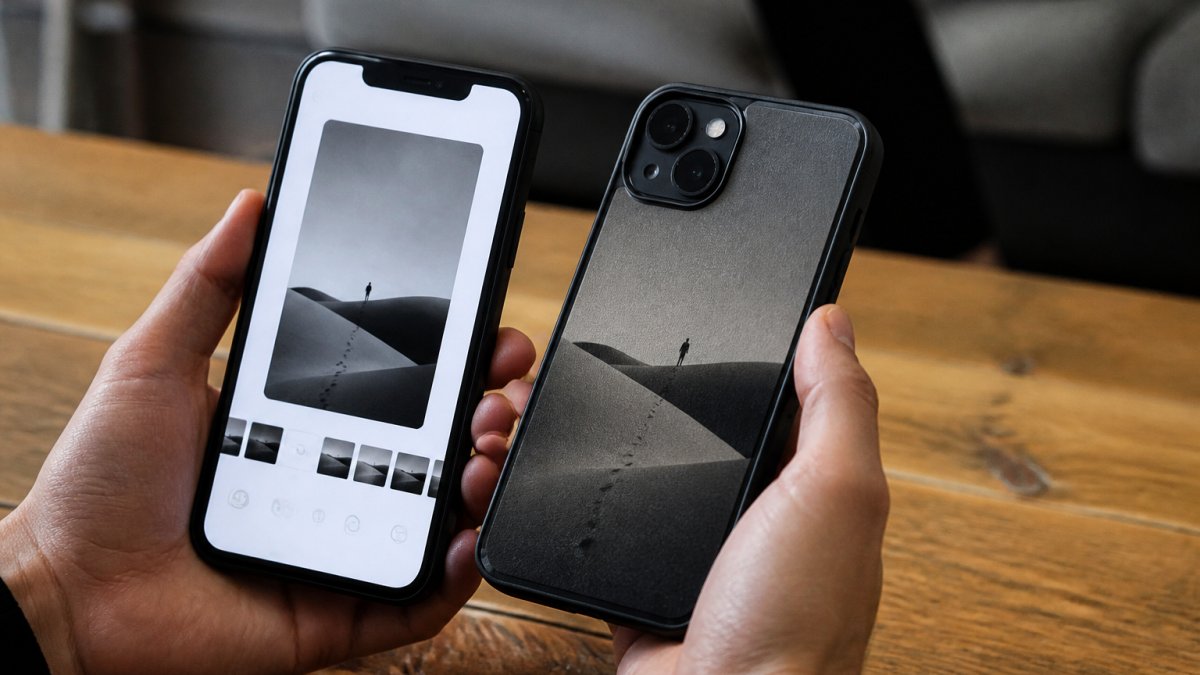
Open your photo library through the app and browse to find your image. You can use photos from your camera roll, artwork you've created, or any digital image stored on your phone. The app displays a preview of how your image will appear on the case's E Ink display.
Consider the image dimensions. E Ink displays work best with images that have good contrast between light and dark areas. High-contrast photos render more crisply than low-contrast ones. Test how your chosen image looks in the preview before moving forward.
You can edit your image within the app if needed. Once you're satisfied with how it looks, move to the next step.
Step 3: Enable NFC on Your Phone
NFC must be turned on for the transfer to work. On iPhone, you can verify NFC is active in Settings > General > NFC. Toggle it on if it's off.
On Samsung Galaxy devices, open Settings > Connected Devices > NFC and toggle it on.
Leave NFC enabled after the initial setup. The case doesn't use NFC continuously, it only activates when you deliberately tap your phone to the case to transfer a new image. Your phone's battery won't drain from having NFC on.
Step 4: Transfer Your Image to the Case
This is where the magic happens. Hold your phone directly against the back of the case where the E Ink display sits. Keep your phone flat against the case for a few seconds. The app will confirm the transfer with a notification on your screen.
The image appears on the E Ink display almost instantly. The paper-like finish means it looks like a printed photo rather than a glowing screen. That's the whole process, no additional steps, no waiting, no complications.
If the transfer doesn't work on the first attempt, ensure NFC is enabled and try again. Keep your phone steady against the case for the full duration of the transfer.
Using the NFC Phone Case App for Best Results
The companion app does more than just transfer images. It stores your design history, lets you manage multiple images, and provides settings to optimise how your image displays on the case.
Explore the app's gallery feature. You can save multiple images and switch between them whenever you like. Create a collection of seasonal designs, mood-based photos, or themed artwork. The app keeps all your designs organised and ready to deploy with a single tap.
Check the display settings within the app. These tweaks can make a significant difference in how your image looks on the E Ink display, particularly for images with subtle colour gradations.
How to Change NFC Phone Case Image: Updating Your Design
Changing your design is just as simple as the initial setup. Open the companion app, select a new image from your library, and tap your phone to the case again. The E Ink display updates within seconds.
NFC E Ink Case for iPhone Pro and Pro Max →
You can change your design as often as you like. Some users update their case daily to match their outfit or mood. Others change it weekly or seasonally. There's no limit to how many times you can update, the E Ink display doesn't degrade from repeated changes.
If you've previously transferred an image and want to switch back to it, the app stores your design history. Simply select the old image from your saved designs and transfer it again. No need to re-upload or re-edit.
The beauty of how to change NFC phone case image is its speed. You're never locked into one design. Your phone case becomes as flexible and changeable as your personal style.
Personalizing with an NFC Phone Case with Photo
An NFC phone case with photo transforms your device into a gallery. Display a family portrait, a favourite travel photo, or artwork you've created. The paper-like E Ink finish gives your image a sophisticated, printed appearance rather than a digital screen look.
Consider what image tells your story. A professional headshot works for business users. A candid family photo suits parents. Artists can showcase their work. Pet lovers can display their furry companions. The case becomes a personal statement about who you are.
Seasonal updates keep your case feeling fresh. A beach photo in summer, autumn leaves in autumn, snow scenes in winter. Your case evolves with the seasons without requiring a new physical case.
Gift-giving becomes personal too. Load a cherished family photo before wrapping the case as a present. The recipient receives a case already displaying something meaningful to them, making the gift feel thoughtful and complete.
Common Mistakes to Avoid
Don't assume your phone model is compatible without checking specifications. Each case fits one exact model. Ordering the wrong size wastes time and money on returns.
Avoid low-contrast images. Test your image in the app's preview before transferring it to the case.
Don't forget to enable NFC before attempting your first transfer. Many users skip this step and wonder why the transfer fails. A quick settings check prevents frustration.
Resist the urge to force your phone against the case. A gentle, steady contact works better than pressing hard. Let NFC do the work, it doesn't require pressure or multiple attempts if your phone is positioned correctly.
Don't neglect the app's display settings. The default settings work fine, but exploring adjustments often improves results significantly.
Troubleshooting and Recovery
If your image won't transfer, start with NFC. Verify it's enabled in your phone's settings. Then ensure the companion app has permission to access your phone's photo library. Restart the app and try again.
If the transfer completes but the image doesn't appear on the case, wait a few seconds. E Ink displays take a moment to refresh, particularly with complex images. The display will update, patience is key.
For persistent transfer issues, restart your phone. Close the companion app completely and reopen it. Sometimes a fresh start resolves connection problems between your phone and the case.
If your image appears faded or unclear on the E Ink display, check the original photo quality. Low-resolution images look pixelated on E Ink. Use high-resolution photos for the best results. Adjust settings in the app to enhance clarity.
Contact ShopTapEink's Sydney-based support team if problems persist. They can walk you through advanced troubleshooting and verify your case is functioning correctly.
| Issue | Cause | Solution |
|---|---|---|
| Transfer won't complete | NFC disabled | Enable NFC in phone settings |
| Image won't appear | App permission missing | Grant photo library access in settings |
| Image looks faded or unclear | Low resolution | Use high-quality, high-contrast photos |
| Display not updating | Connection interrupted | Restart phone and app, try again |
| Wireless charging not working | Model incompatibility | Contact support to verify compatibility |
Frequently Asked Questions
How often can I change the image on my NFC phone case?
You can change your NFC phone case image as often as you like. The E Ink display has no battery and holds your image indefinitely without power consumption. Simply open the companion app, select a new photo, artwork, or quote, and tap your phone to the case to transfer it. There's no limit to how many times you can update the design, making it perfect for matching your outfit, mood, or occasion.
Will using NFC technology drain my phone's battery faster?
No. NFC transfers are extremely brief and use minimal power. The E Ink display itself is battery-free and requires no charging, so the only battery draw is the momentary NFC tap when you transfer a new image. This typically takes just a few seconds and has negligible impact on your phone's overall battery life. Your phone's battery will not drain noticeably from using an NFC phone case.
What image formats and sizes work best with NFC phone case customization?
The companion app accepts standard photo formats like JPEG and PNG. For best results, use images at least 1080 pixels wide to ensure clarity on the E Ink display. The app will guide you through cropping and positioning your image to fit the case's display area. Artwork, quotes with text, and personal photos all work well. Avoid very small file sizes, as they may appear pixelated on the E Ink display.
Is my iPhone or Samsung Galaxy model compatible with NFC phone case customization?
Compatibility depends on your specific model. NFC E Ink cases are available for iPhone 13 Pro through 17 Pro Max, iPhone 16 standard models, and Samsung Galaxy S23 Ultra and S24 Ultra. Each case is designed for a specific model to ensure proper fit and NFC functionality. Check the product listing for your exact phone model before ordering, or contact our Sydney-based support team if you're unsure whether your device is compatible.
Customizing an NFC phone case transforms how you express yourself through your device. ShopTapEink's battery-free cases let you change your phone's appearance instantly without charging cables or complicated setups. With paper-like E Ink displays and seamless NFC transfers, you get a personalised device that evolves with your style. Shop now and start displaying your first design today.
Anime Phone Case Designs: How to Choose Artwork for an E Ink Case
E Ink Phone Cases and Gadgets: How to Choose What Fits Your Needs
Related Posts

Are Battery-Free Customizable Phone Cases Worth It?

5 Things to Know Before Buying an NFC Case for iPhone 16

How to Put Photos on an E Ink Phone Case

Inkcase vs Reinkstone: 2026 E Ink Case Comparison

Does an NFC Phone Case Drain Battery? The Real Answer

E Ink Phone Case Battery Life: What to Expect

Hipoink Alternative for Creative Professionals: E Ink Cases
